

Create a Server from a Server Pack
This guide is for advanced, custom installations only.
This guide is for intermediate to advanced users. Before using this guide, we suggest looking through our current list of installable modpacks.
If you come across a modpack we don't have in our list, let us know! We might be able to add it if it has its own server pack. If we're not, you may still be able to create a server for it easily with its provided server pack. This guide will show you how.
Prerequisites
You will need a few things to begin:
- A modpack installed in your launcher of choice
- A server pack from that modpack
- A blank modloader server
Modloaders
There are several modloaders for Minecraft. These are pieces of software that integrate with the game and facilitate the loading and running of individual mods. The 3 most popular are Forge, Neoforge, and Fabric. This guide should apply to all 3 of those.
Finding a Server Pack
First, you will need to find the server pack. We will be using Curseforge and All the Mods 10 in this example.
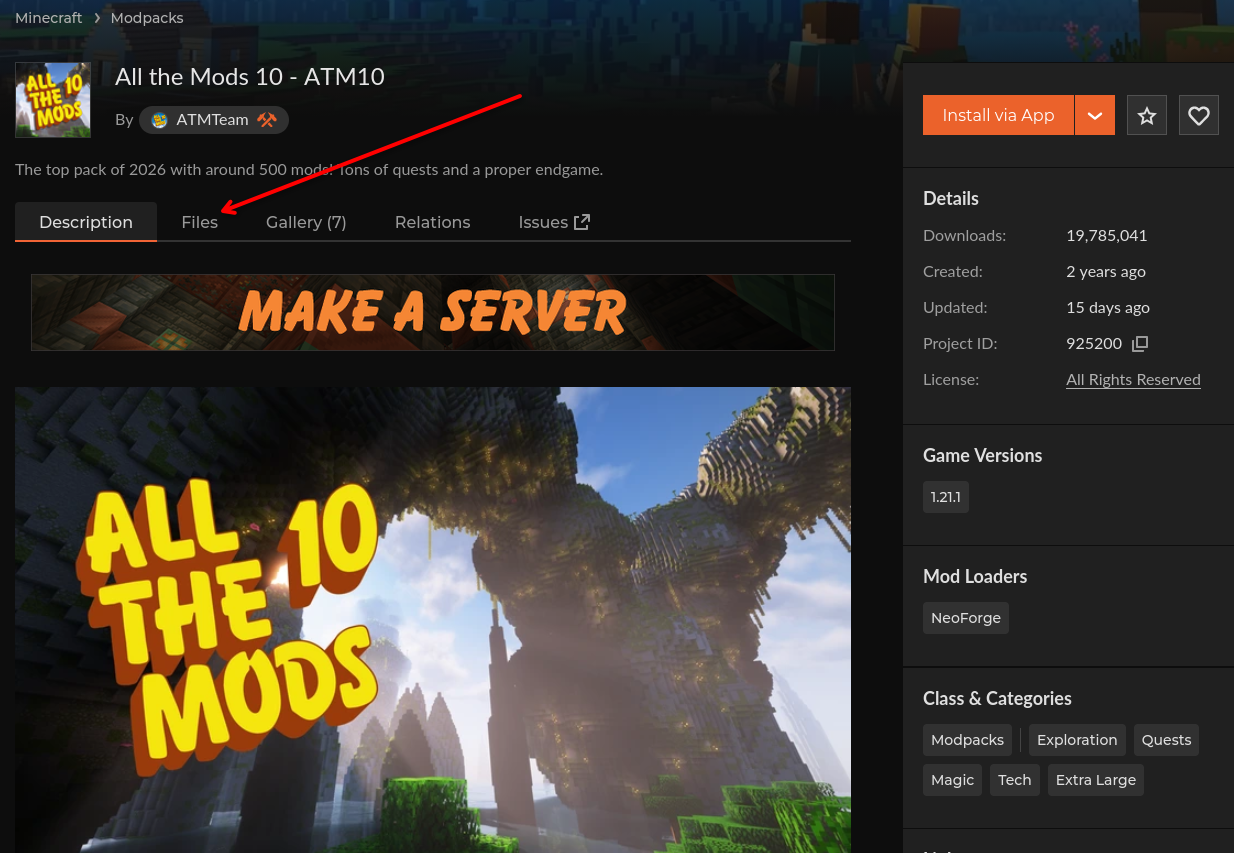
On the modpack's Curseforge page, click Files.
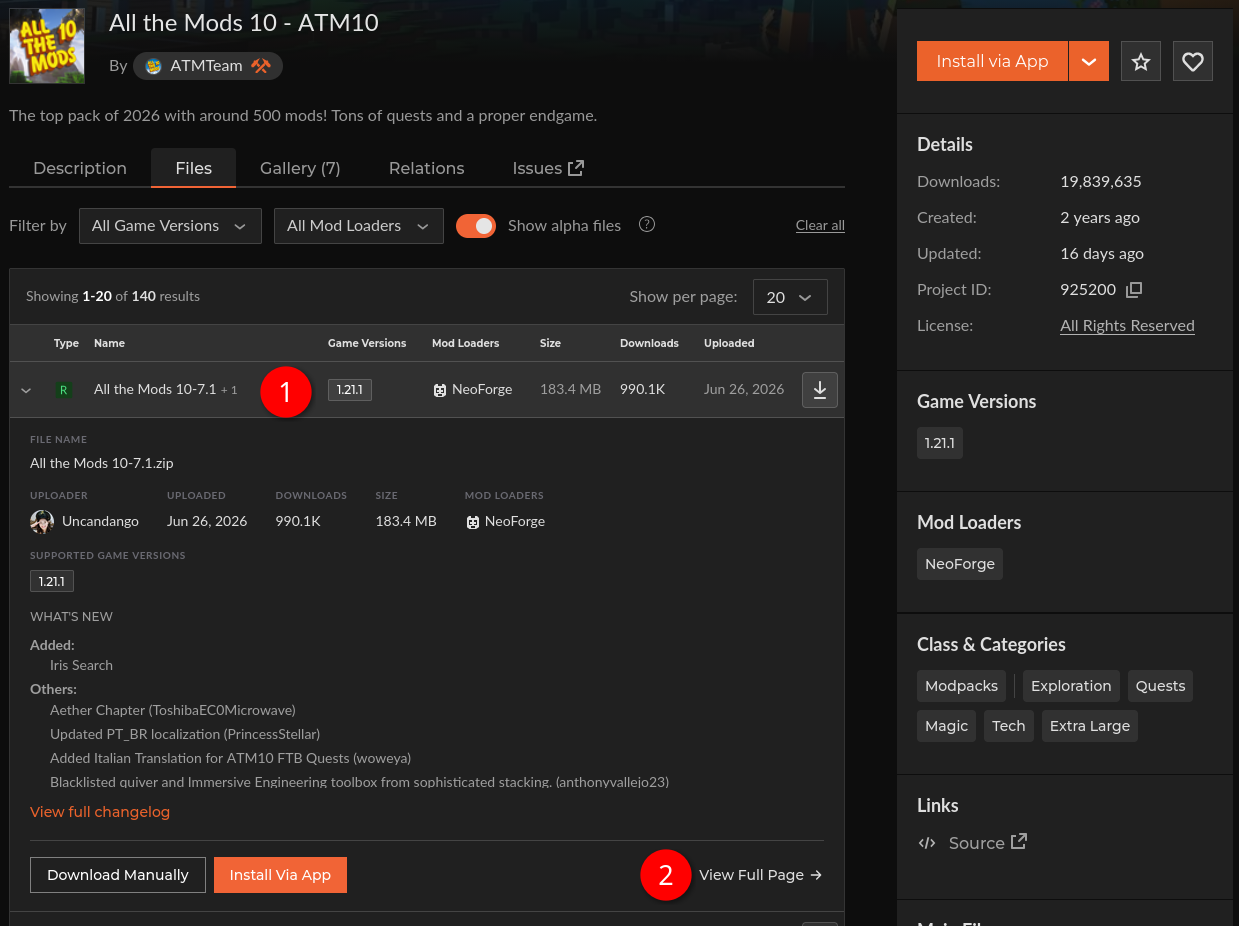
Next, click the version you want, then click "View Full Page".
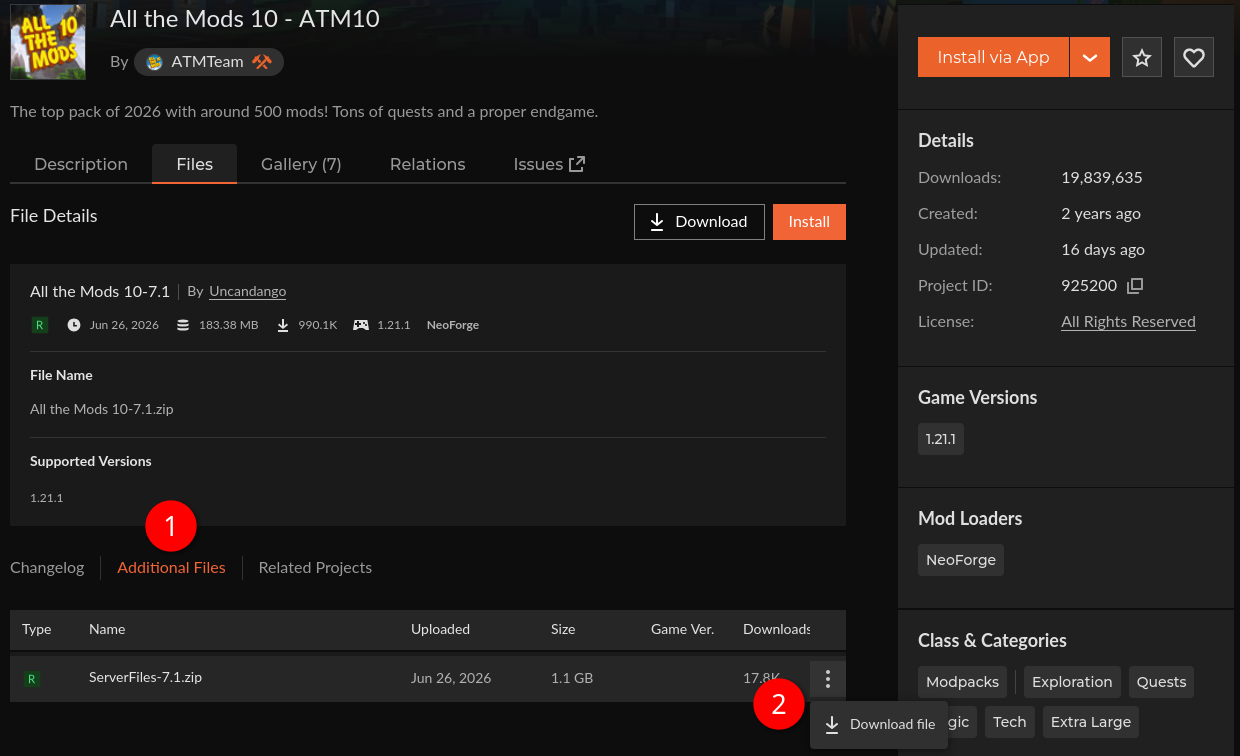
Then click "Additional Files". This will show the server pack, if there is one. Then click the 3 dots next to the server pack and click "Download".
If your modpack does not have a server pack available, check out this guide on creating a server pack manually for a server.
Now that you have the server pack, you will need to unzip it and verify it has the required files. Not all server packs have the files necessary to run on a server. The bare minimum required by our system to run a server pack is a mods folder. However, there may be many more folders, and that's okay.
The folders included in the ATM10 server pack are as follows:
- config
- datapacks
- defaultconfigs
- kubejs
- local
- mods
- plus some other loose files that don't matter but can safely be added to the server
These are all safe folders to add to your server, and some modpacks require them. If a modpack has a "libraries" folder, do not add that to the server.
Once you have verified your server pack looks good, save it for later in this guide. You first need to set up a blank server capable of running the server pack.
Finally, now that you've verified there is a server pack for your desired modpack, install the Minecraft modpack on your computer. This can be done through any of the popular launchers such as Curseforge, Technic, Modrinth, or Prism, although there are many more.
Preparing a Blank Server
To prepare a blank server, you need to find out what modloader, modloader version, and Minecraft version your modpack uses so you can install a blank modloader server with Akliz. This is the server you will upload your modpack files to later. I will be using the Curseforge launcher and the All the Mods 10 modpack as an example.
- In the "My Modpacks" section of the launcher, click your modpack to open the details screen.
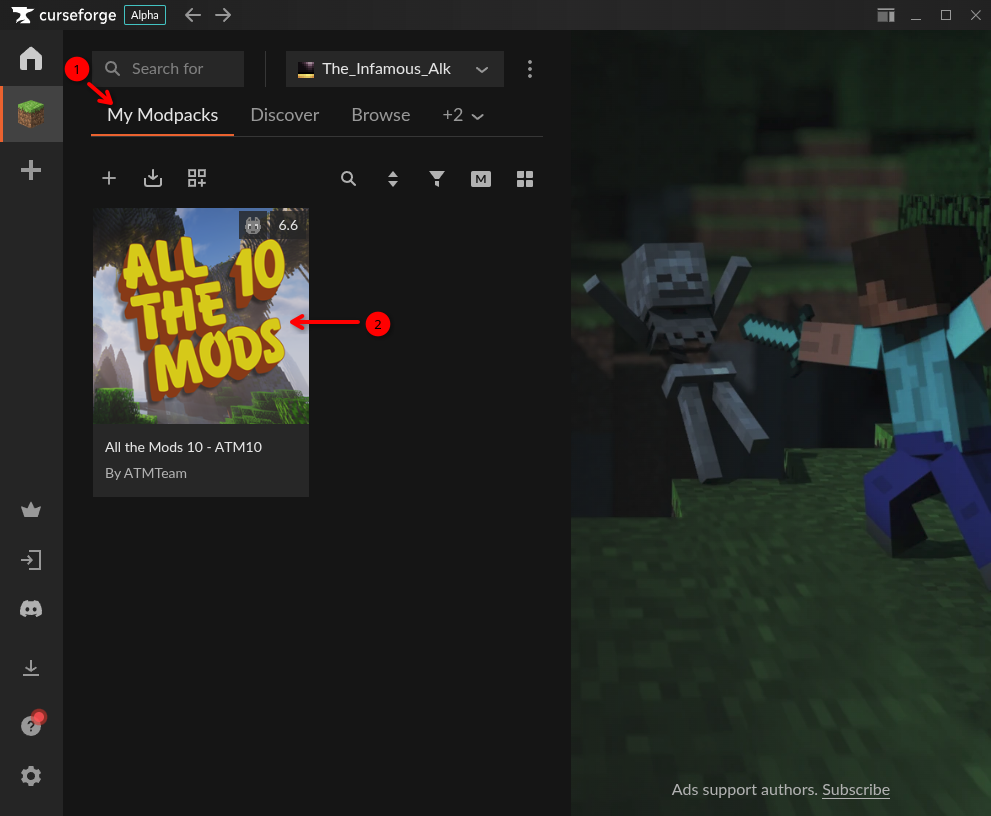
- On this screen, you can see both the game version and the modloader version. For example, ATM10 version 6.6 uses Minecraft 1.21.1 and Neoforge version 21.1.224, as shown in the screenshot below.
- Remember or note down the Minecraft and Modloader version.
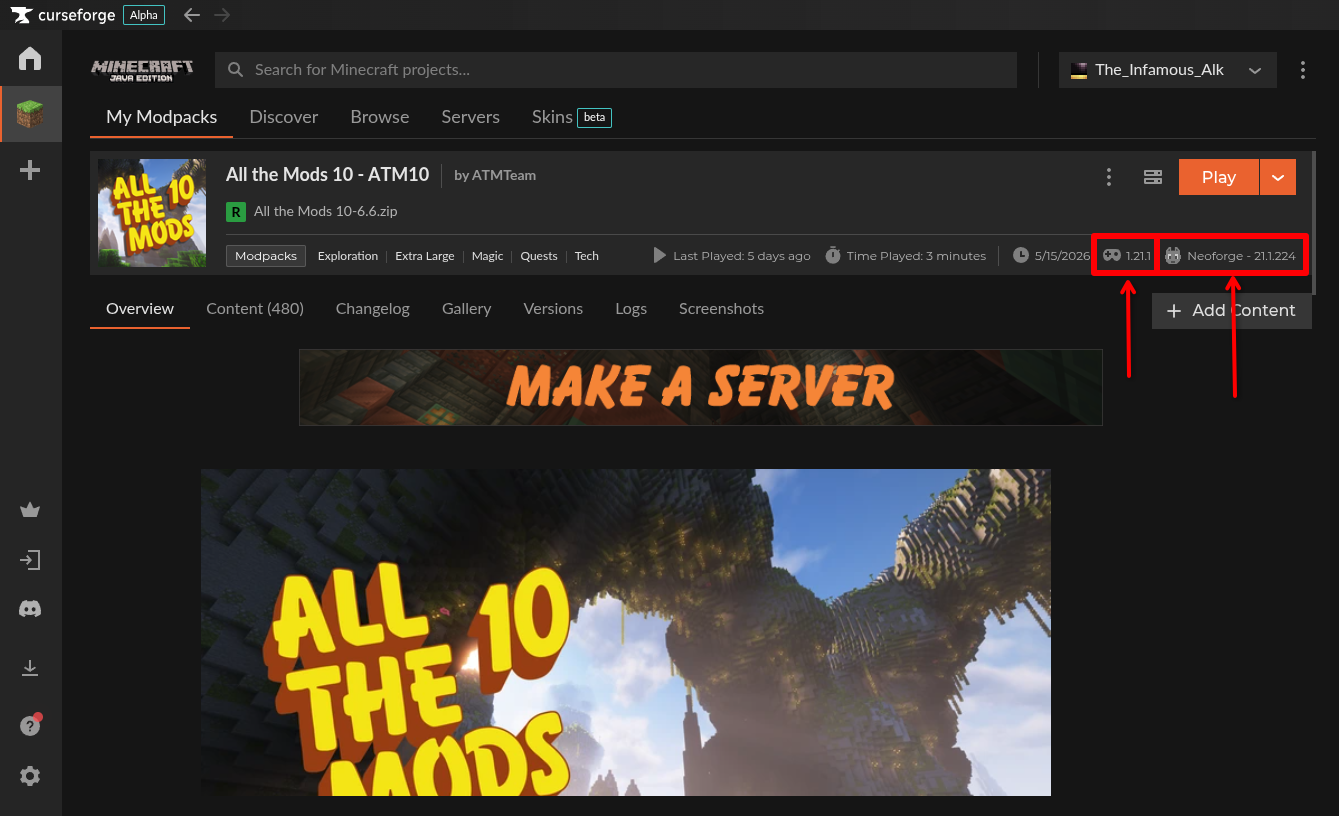
In this example: Minecraft version (1.21.1) and Modloader (Neoforge) version (21.1.224)
Now, we will install a blank modloader server. Based on the previous example, we will be installing a Neoforge server, but the instructions are similar for all modloaders.
- From your Akliz servers list, click "New Server".
- Search for your modloader. For example "Neoforge".
- Click the result for your modloader. Make sure to not install one of the other pre-built modpacks.
- Fill out the information on this screen and click "Create Server".
- Now click "Manage" next to your new server on your Servers page.
- Your blank modloader server is now installed.
Uploading the Files to the Server
Now, it's time to actually put these files into your server. You will need to read our guide on connecting to the server with SFTP, which is what you will use to upload files.
Once connected with SFTP, drag the contents of your "server pack" folder on the left of the SFTP program into the main folder of your server on the right. You may have to open the main folder first, which will be named something like minecraft-neoforge, and then drag the files in.
Once all files are uploaded, verify they are there by going to your server's console page that you had open from earlier, and clicking the "Files" tab. If you were already on that page, refresh the page first. Click the mods folder, and make sure you see files in that folder. There will be several in there, and they should all end in .jar . If there are no files in the mods folder, you may have dragged the wrong folder, or dragged it inside the wrong destination folder on the server.
Now, click "Start" on your server's page. If your server starts without issue, you are good to go! If the server doesn't work, there are a lot of possibilities. Maybe the server pack provided by the modpack author is broken/invalid, or maybe the server has the wrong modloader version, or maybe it's something else. If you run into any issues, reach out to us in our live chat and we'd be glad to help!
Join your Server
Finally, it's time to join your server. Load up your modpack from your launcher, and use your server's friendly address or direct IP to connect to your server.
If you get any errors when joining your server, reach out to support using the chat button on the bottom right corner of the page and we can help. And have fun!
Updated about 1 month ago