

Install a Data Pack
Data packs provide a way for players to further customize their Minecraft experience. Data packs can be used to override or add new advancements, functions, loot tables, predicates, structures, recipes and tags without any code modification.
For more information on how to install datapacks on the client-side and how to create them, check out Mrbysco's guide here.
Where to find Data packsDatapacks can be downloaded from Curseforge's Data Packs page, or through the Vanilla Tweaks website.
Upload a Data Pack to a Server
Make sure a world folder existsBefore a datapack can be uploaded, a world folder will need to be created. If you do not have a world folder on the server yet, make sure to start the server so that a folder can be generated.
- Download your desired datapack.
- Login via SFTP
- Locate the server's world folder, then look for a folder called
datapacks. Upload the desired datapack to the server.
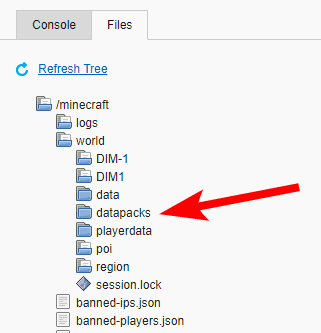
Datapacks that affect world generationIf your datapack contains a
worldgenfolder, this means the datapack may affect world generation. As world generation does not apply to existing chunks, new chunks will need to be explored, or chunk data will need to be reset.To reset a world and keep the datapack on the server, delete all folders except the
datapacksfolder. A new world will be generated without removing the datapack. The server must be stopped before deleting these folders
Manage Data Packs on a Server
Once a Data Pack has been uploaded to a server, there are a couple things you can do with Data Packs. All datapack management commands require Op permissions in order to run the command in-game.
Reload Datapacks
The /reload command allows for reloading all datapacks that have been added or changed on a server. Instead of restarting the server every time, simply run this command and all data will be reloaded. Note that the server will appear to freeze while this command is running. This is completely normal behaviour, and the server will resume activity one all datapacks are reloaded.
If any datapack has an error on reload, the previous data in the datapack will be used instead. Make sure to check for any formatting errors when reloading datapacks.
List all Datapacks
A list of datapacks can be displayed by running the /datapack list command. This will show all datapacks installed on the server, including disabled datapacks. If you are unable to find the datapack you uploaded, try running the /reload command. Datapacks with loading errors may not display.
To show all datapacks that can be enabled, run /datapack list available.
To only show datapacks that are enabled, run /datapack list enabled.
Enable/Disable a Datapack
When a datapack is uploaded to a server, it may not automatically be enabled. To enable a pack, run the /datapack enable command.
Conversely, to disable a datapack, run the /datapack disable command on the datapack you would like to remove.
The name of a datapack can be easily found by running the /datapack list command.
Create a Datapack Template
As of Minecraft 1.21.6, a new datapack can be created using the /datapack create command. This will create a template datapack where you can upload your own data files. Once the command is run, a new folder in the datapacks folder will be created. You can then use this to create your own datapack, or upload your own files.
/datapack create <name> <description>

/datapack create "datapack_name" "This is a descrption for my datapack"
Upload a Data Pack to a Server (Modded)
There are mods for Minecraft that can allow for installing datapacks across each world. These mods can help with managing datapacks by creating alternative ways to load datapacks, sometimes referred to as a "global" datapack.
Each mod will have their own way of loading datapacks, such as creating a folder in config, or as a new folder outside of the world. Check the documentation for each mod to check how to upload a datapack to these files.
As a global datapack, these will apply automatically on a new world. Datapacks uploaded this way may always be enabled by default.

Updated 4 months ago