

Upload a World to your Vintage Story server
If you have your own world that you would like to continue running on a server, follow these steps to locate and upload a world.
Stop the ServerBefore uploading a world to a Vintage Story server, make sure to stop the server.
Find the world to upload
-
Launch Vintage Story and click on "Singleplayer."
-
On the bottom-left of the menu, click "Open Saves Folder."
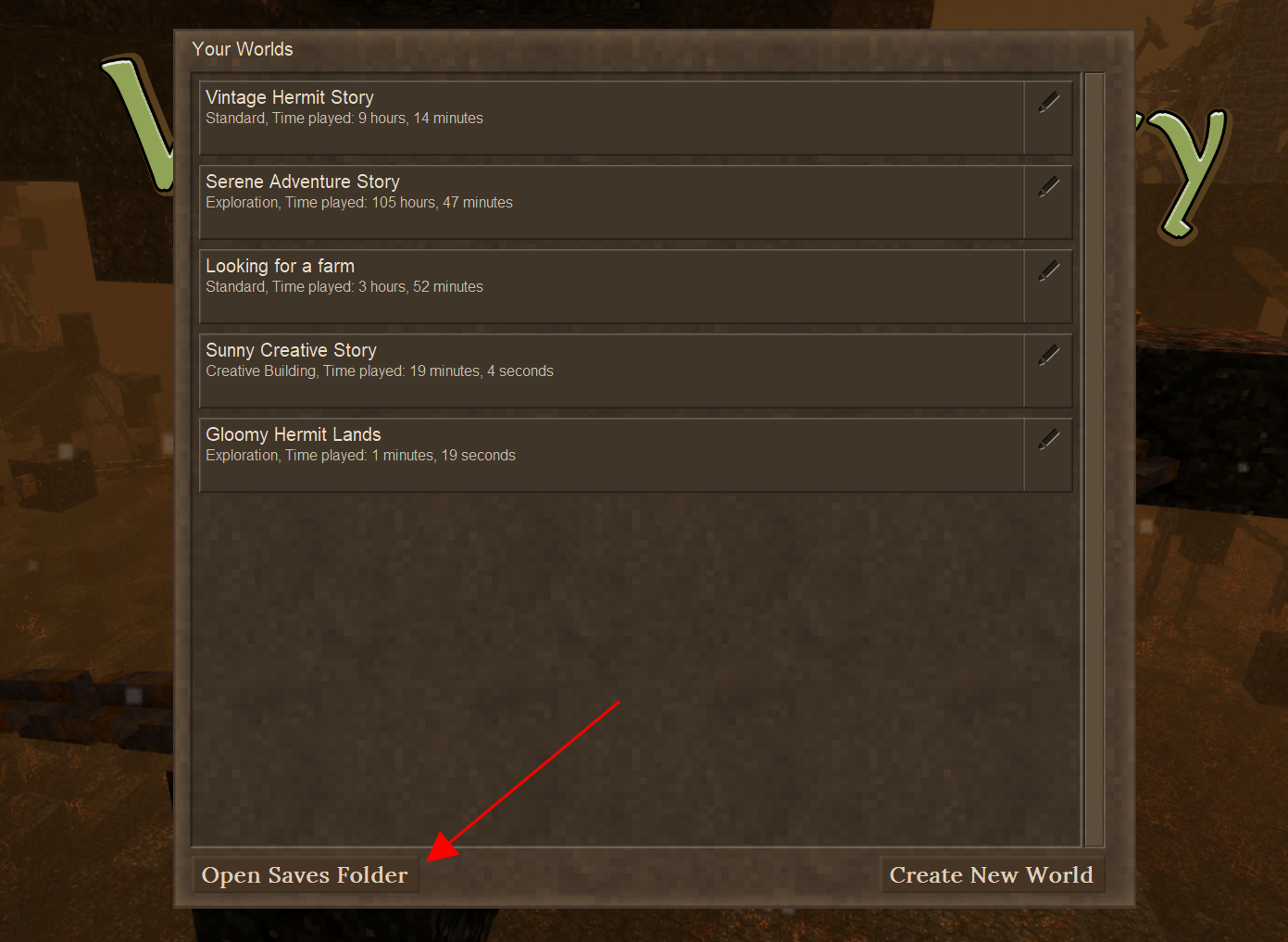
-
Locate the world you would like to upload to a server. The save will be a
.vcdbsfile.
Upload the world to the server
-
Navigate to the folder
vintage-story/data/Saves/ -
Copy the
.vcdbsfile into the folder.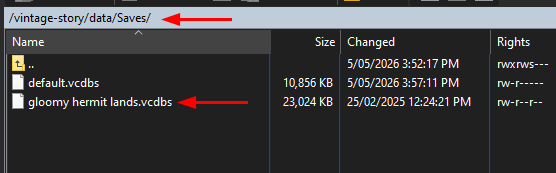
-
Open
serverconfig.jsoninvintage-story/data/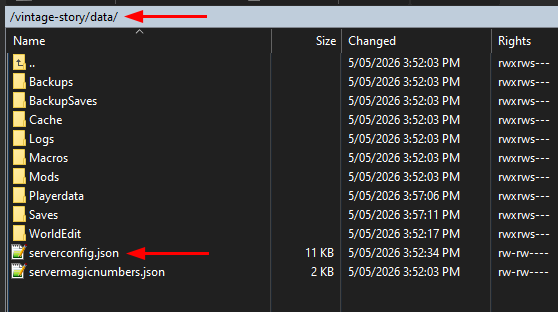
-
Change
SaveFileLocationto the file path of the uploaded world. This must exactly match the file name including the.vcdbsfile tag.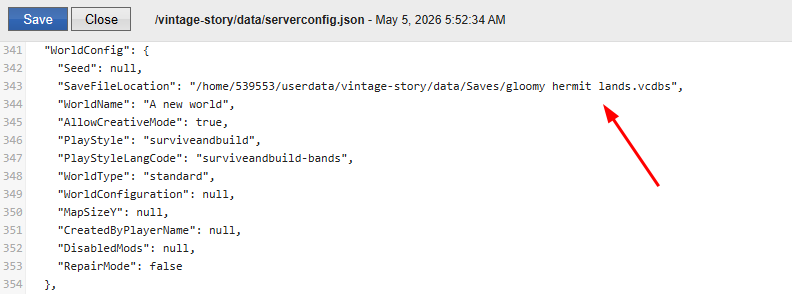
-
Save the file, then start the server.
Don't see a/data/folder?If the
/data/folder doesn't exist yet, the server may not have been started yet. Run the server until the folder has been generated, then continue with the upload instructions.
Updated 5 months ago